Set-up and Initial Menus
Launching F4:AF you are treated to new music, a new opening video and a very nice, clean menu system. It is so clean in fact, that I’m wondering if Lead Pursuit is considering selling advertising space in the big gray billboard area. Text is bright and easy to read, even for 20mm’s old eyes.
 |
 |
F4 veterans will instantly recognize the format, if not the exact style of the new menus. Selecting each menu brings up further menus that will refine what you are looking for. The setup menu allows you to do things like changing your pilot name and call-sign and select difficulty settings.
To new F4 pilots first let me offer you a warm welcome and give you a little advice: Play this sim however your heart desires. Easy avionics and flight model? Go for it. Labels, unlimited fuel or ammo? Absolutely. The reason the “scalability” is there is to allow F4:AF to appeal to a wide variety of skill levels and pilot types just like in the first sim. Learn at your pace and don’t be embarrassed to ask questions. There are four preset skill levels, Ace, Veteran, Cadet, and Recruit, but you can have it your way, any way you want it. And for you new players, the answer to your first question is “SHIFT \” (inside joke).
The next menu is the GRAPHICS tab, allowing you to change screen resolutions and other simulation graphics settings. Resolutions are 1024×768, 1280×960, and 1600×1200, 16 and 32 bit. There are sliders for Landscape, Object Detail and Special Effects. Here’s some good news for F4 veterans, that dastardly “bubble” slider has been banished! The “preview” window offers very little insight into how changing the sliders and settings will actually look in the sim, so it is best to just do some experimenting and find out what you and your individual hardware like.
 |
 |
The SOUND tab is pretty self-explanatory, pick the volume you want for various types of in-game sounds, such as the engine, RWR, Sidewinder tone, Communications, and so on.
In the CONTROLLER tab you pick your joystick or HOTAS. You can center the stick, set the afterburner detent, map keys to buttons or remap the default keys. This is nicely done and easy to use. Our X-45 HOTAS was recognized instantly and it appears that previous profiles for that HOTAS works fine in F4:AF. It is easy to assume that most current USB controllers should work fine with Allied Force.
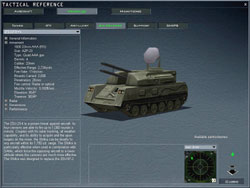
Exiting out of the SETUP menu system I opened the TACTICAL REFERENCE section to explore the reference library. The TAC REF seems very complete with information on all the in-game aircraft, vehicles, and weapons that the player may run across while playing F4:AF. Each entry has reams of information about the selected object and includes a 3D representation and a sound recording of the radar warning receiver audio if applicable. This really is an excellent library of information and one which should not be ignored.
 |
 |
 |
|
Related Posts:

Related posts:
 A New Pilots First Look at Falcon 4.0: Allied Force Page 3
 Falcon 4.0: Allied Force
 Falcon 4.0: Allied Force
 Page 7
Falcon 4.0: Allied Force
Falcon 4.0: Allied Force Page 7
 Falcon 4.0: Allied Force Part 5 Page 2
 Tom’s HiTiles for Falcon 4: Allied Force Page 2
Tom’s HiTiles for Falcon 4: Allied Force Page 3
Tom’s HiTiles for Falcon 4: Allied Force Page 4
Tom’s HiTiles for Falcon 4: Allied Force Page 2
Tom’s HiTiles for Falcon 4: Allied Force Page 3
Tom’s HiTiles for Falcon 4: Allied Force Page 4